Saved
Saved
Everything you kept, in one place.
Hearts, bookmarks, notes and highlights land together. Filter by kind, by volume or by tag, and sort by date, verse or tag. Anything you bookmarked, hearted, noted or highlighted elsewhere on this site is here too.
- Tag verses and highlights your way, then filter by any tag from a simple list or a word cloud
- Works offline with no account
- Syncs across every device once you sign in
This demo is filled with 500 example saves (real verses, tagged with their own study topics) so the filters have a library to work on.
Saved · Tags
Your own tags, as a word cloud.
Tag any verse or highlight your way, then filter by tag from a word cloud sized by how often you use each, or a simple list with counts.
- Suggested tags as you save, or type your own
- Tap a tag to show only what you tagged with it
- Sort by tag, A to Z
Saved · Highlights & notes
Highlights and notes, side by side.
Every highlight keeps its color, tags and note; every note keeps its verse. Filter to Highlights or Notes, search them, and sort by date or scripture order.
- Search verses, notes and tags at once
- Add a note or tags to any highlight right from the card
- Tap a card to go straight to its verse
How it works
Getting around Saved
Step by step, in the app's own words.
1Find something you saved
- 1Open Saved (the bookmarks icon).
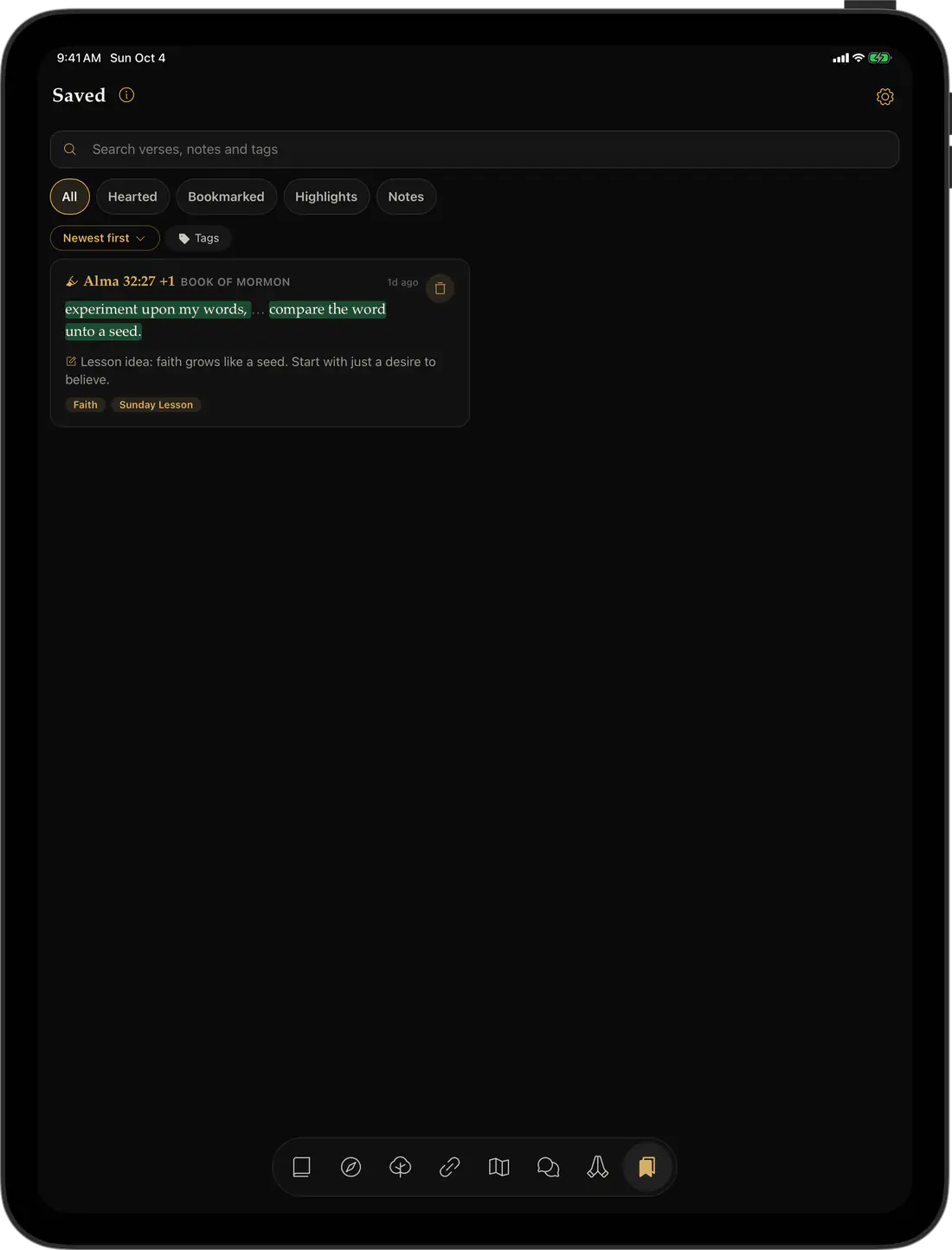
- 2Pick a kind: “All”, “Hearted”, “Bookmarked”, “Highlights” or “Notes”.
- 3Or type in “Search verses, notes and tags”.
- 4Narrow to one volume with its chip, and change the order with the sort chip (“Newest first”, “Scripture order”…).
2Tag your saves and filter by tag
- 1On any card, tap “+ Add tags” and add your own.
- 2Tap the “Tags” chip to see them all, as a word cloud or a simple list.
- 3Tap a tag to show only what you tagged with it; tap it again to clear.
3Open, edit or remove a save
- 1Tap a hearted, bookmarked or highlighted card to go to that verse.
- 2Tap a note to edit it.
- 3Tap the icon in a card’s corner to remove it. The app asks first.
Signed in, everything syncs across your devices; pull down to refresh.