Feed
Feed · Verse detail
Study notes behind every verse.
- Step to the verse before or after right in the notes with ‹ › under the title, on into the next chapter
- Echoes: the words a verse shares with other scripture, like “so loved the world that he gave” in John 3:16 and D&C 34:3
- Folded into five groups (Understand the words, Live it, Across scripture, Who, when & where, Talks & comments) so the notes stay short and open where you want them
- When and Where: the Book of Mormon year by its own count, and every place named on the map. The real map opens right there, never leaving the verse
- Generated once per verse and shared by everyone, never built from your own data
- Every note read again beside its verse and corrected where it was wrong, and Bible word studies drawn from Strong’s Hebrew and Greek
- General Conference links come from each talk’s own footnotes, never a model’s guess
- Study notes, marked in the app as a study aid, not Church doctrine
Feed · Search
Find any verse, even with a typo.
- Narrow results to one volume, from the Old Testament to the Pearl of Great Price
- “Alma 32:21”, “Psalm 23” or just “Nephi” offer Go to Verse, Chapter or Book
- Matched words are underlined, so they’re never confused with your own highlights
Feed · Scan
Point your camera at scripture.
- The photo is read on your phone. Nothing is uploaded
- Finds a verse even with no reference in sight, by its words alone
- All possible matches: every verse it might be, every person or place it names, each line as a search
- Recent scans wait in the camera’s menu, so you can reopen one without photographing it again
On this page the camera and photo are stand-ins; the matching that finds the verse is the app’s own.
Feed · Full Chapter
Highlight scripture like a printed page.
- In the app, selection works down to the letter, with drag handles
- Add a private note or tags to any highlight
- Every highlight is gathered in Saved. Try it, then scroll down
Feed · Settings
Twelve themes. Ten fonts. Your page.
- 12 themes, each with its own light and dark version
- 10 verse fonts (Lora, EB Garamond, Libre Baskerville, Inter, Lato and more), sized so switching doesn’t change how big the text reads
- Verse by Verse or Full Chapter, with left, center, right or justified text
Feed · Daily verse
A verse for today, from every book of scripture.
- 300 verses across the Old Testament (KJV), New Testament (KJV), Book of Mormon, Doctrine and Covenants, and Pearl of Great Price
- Every verse is shown once before any repeats
- Works offline
A verse for every day
529 hand-picked verses, from every book of scripture.
From the Old Testament (KJV), New Testament (KJV), Book of Mormon, Doctrine and Covenants, and Pearl of Great Price. The Daily Verse rotates through eight themes centered on Jesus Christ: patience, peace, comfort, wonder, hope, love, trust, and refuge. Each day brings the same verse to everyone, available offline.
Feed · Gospel Library
From Gospel Library to the study notes, in one tap.
- Shared verse ranges open with a verse-by-verse stepper
- On iPhone, “Verse details by Nephi Plates” in the share sheet shows the verse’s explanation right there
- Link-level only. Nephi Plates is not affiliated with The Church of Jesus Christ of Latter-day Saints
Your tab bar
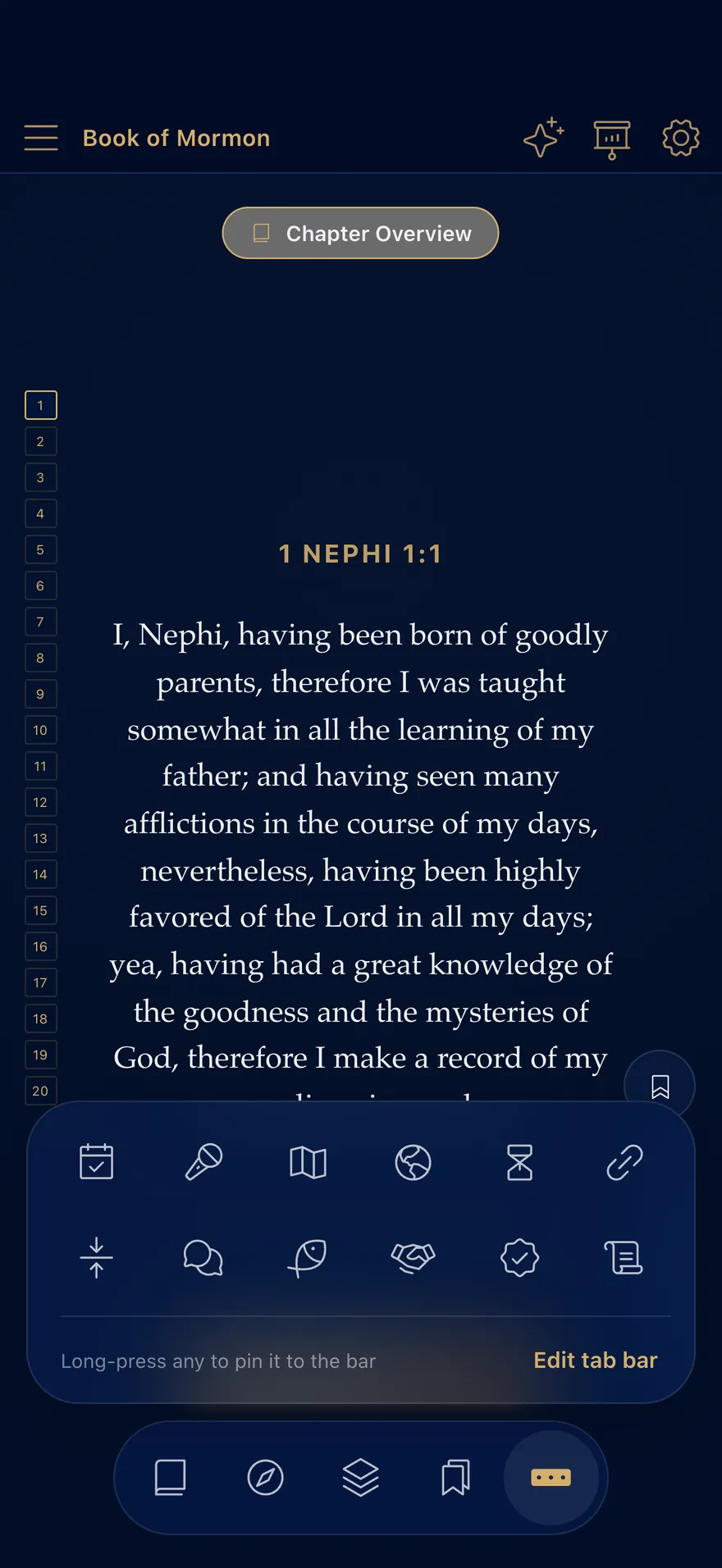
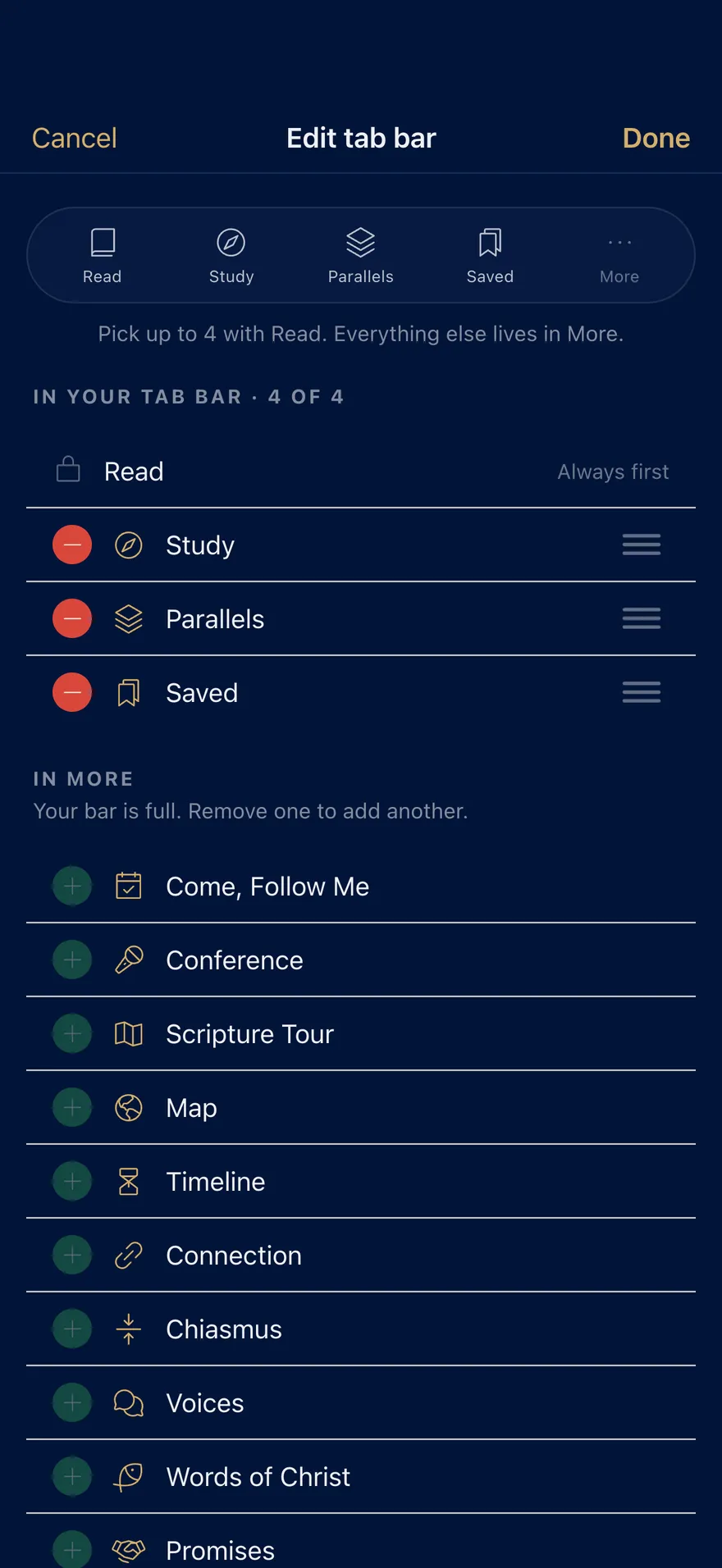
Put what you use most one tap away.
- Four tabs and More on iPhone, six and More on iPad
- Any feature can be a tab: Come, Follow Me, the Map, Timeline, Chiasmus and more
- More lights up when you’re on something that isn’t pinned, and shows you where
How it works
Getting around Feed
Step by step, in the app's own words.
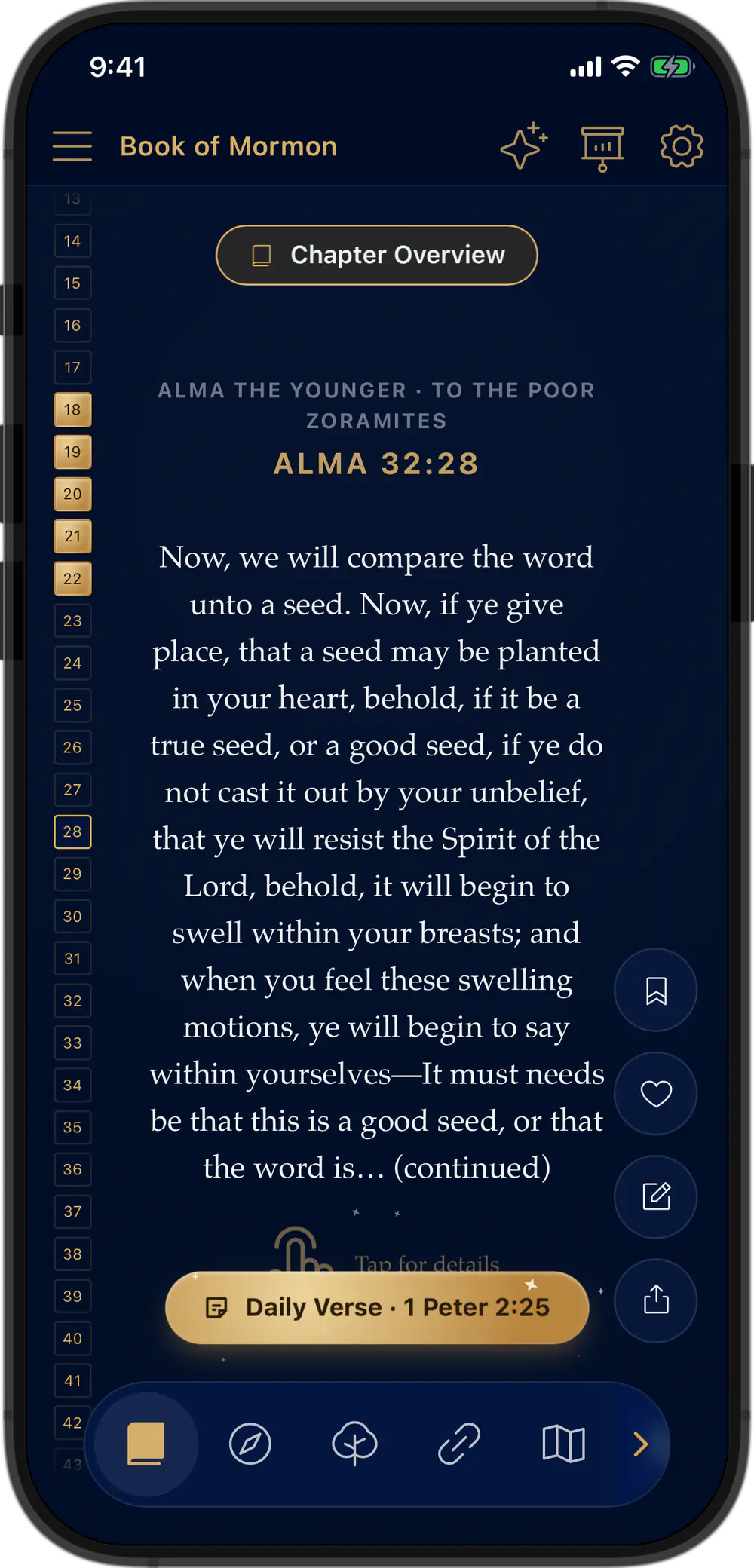
1Read one verse at a time
- 1Open the Feed (the book icon in the tab bar).
- 2Swipe up for the next verse, down for the one before.
- 3Tap the verse itself to open its study notes.
- 4Tap the glowing “Daily Verse” pill for today’s verse.
2Bookmark, heart, note or share a verse
- 1Use the icons beside the verse: bookmark, heart, pencil (note) and share.
- 2Tap the bookmark or heart. An “Add Tags” sheet offers suggested tags, or type your own.
- 3Close the sheet with ✕ to keep the tags.
- 4Tap the pencil to write a private note; it saves as you type.
- 5To undo, tap the filled bookmark or heart again and confirm “Remove”.
Notes need a free account; bookmarks, hearts and tags work without one.
3Explore a verse’s study notes
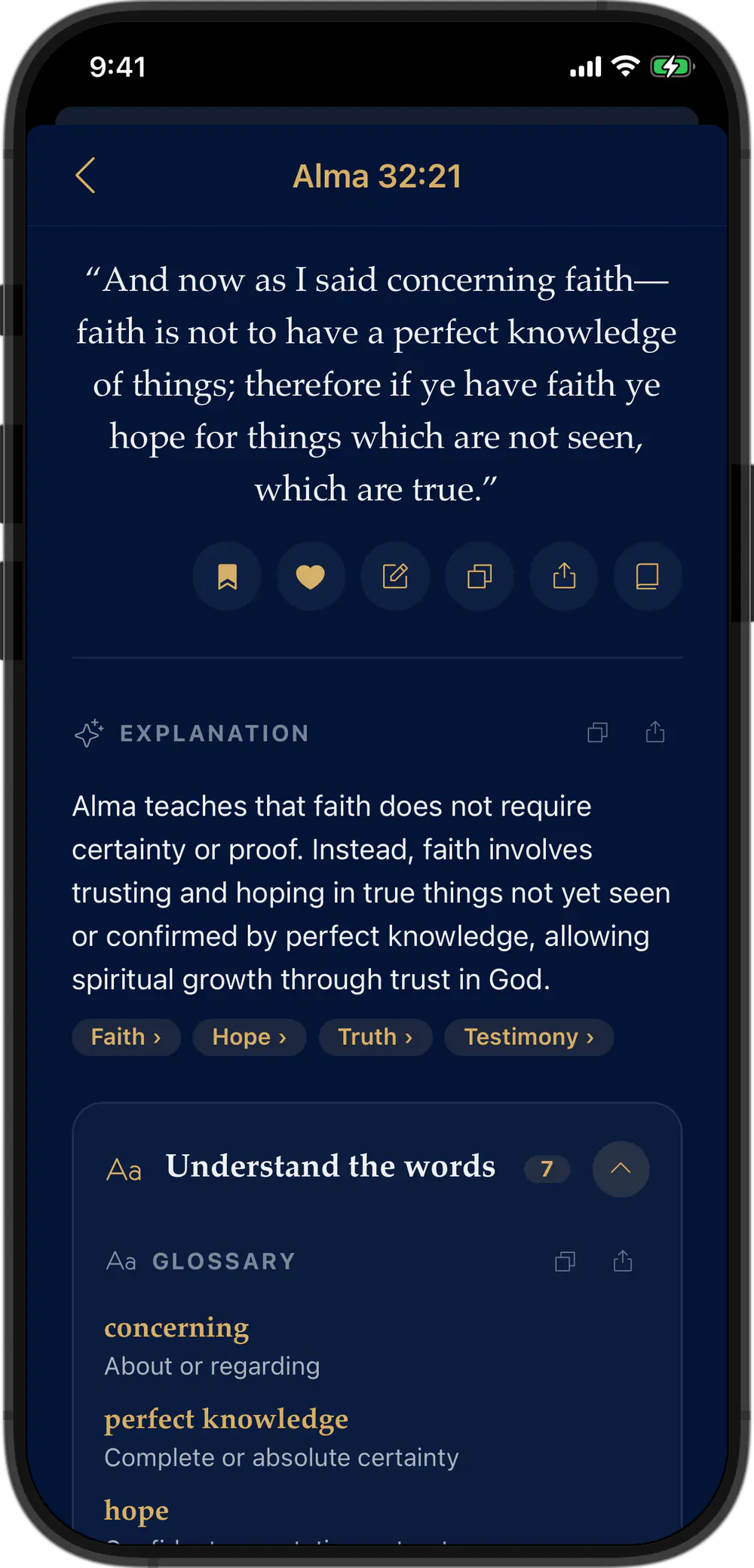
- 1Tap any verse. Its explanation and topics come first. Tap a topic to open it in the Scripture Tour.
- 2Below, the notes are in groups: “Understand the words”, “Live it”, “Across scripture”, “Who, when & where” and “Talks & comments”.
- 3Tap a group’s header to fold it away; the app remembers which you closed.
- 4Use ‹ and › under the title to step to the verse before or after. The notes follow.
- 5Under “Across scripture”, tap “This Chapter” or a related verse. It opens on top, and the back arrow returns you.
- 6Under “Talks & comments”, tap a General Conference talk to read it.
On iPad in landscape the notes open in a panel beside the text.
4Jump to any verse, chapter or word
- 1Tap the list icon (top left) or the volume name.
- 2Pick a chapter number, or use the back arrow to choose another book or volume.
- 3Or type in “Search the scriptures”: a reference like “Alma 32:21” offers “Go to Verse”.
- 4Words find every verse that uses them; narrow by volume with the pills.
5Highlight a passageIn the Full Chapter view.
- 1Tap the gear (top right) and choose “Full Chapter” under “Reading View”.
- 2Long-press a word, then drag to cover the words you want; drag the handles to adjust.
- 3Pick a colour, and add tags or a note if you like.
- 4Tap the check to save. Long-press again to add another span to the same highlight.
- 5Tap a saved highlight later to recolour it, open the verse’s notes, or delete it.
6Find a verse with your camera
- 1Tap the list icon, then the camera icon in the search field.
- 2Choose “Take Photo” or “Choose Photo”: a page of scripture, a lesson handout, a slide. Your recent scans are listed right below.
- 3The app reads the words on your phone and shows the verse it found.
- 4Open its “Verse Details”, “Chapter Details”, “Connections”, a “Study Plan”, or “Read” it in place.
- 5Not the one you meant? “All possible matches” lists every verse, person and place the photo could mean.
The photo is read on your phone and never uploaded.